Pre-assembled Shopify variant inventory management
How to create a seperate inventory of preassembled variants with Material Manager
Table of contents
- Overview
- Assembling variants
- Viewing assembled inventory levels
- How orders use assembled inventory
- Import/export assembled inventory levels
Overview
The preassembled variants feature enables you to manage pre-built/assembled inventory for product variants. When an order is placed it will first draw down assembled inventory, if available, before using raw materials to fulfill the order.
Assembling variants
Inventory for preassembled variants can be edited in the Shopify admin on both the product page and an individual variant page. To assemble inventory for a variant, click on the “More actions” button in the top right, and select “Assemble variants from materials”.

This will open a dialog that allows you to select which variant to assemble and for which location.
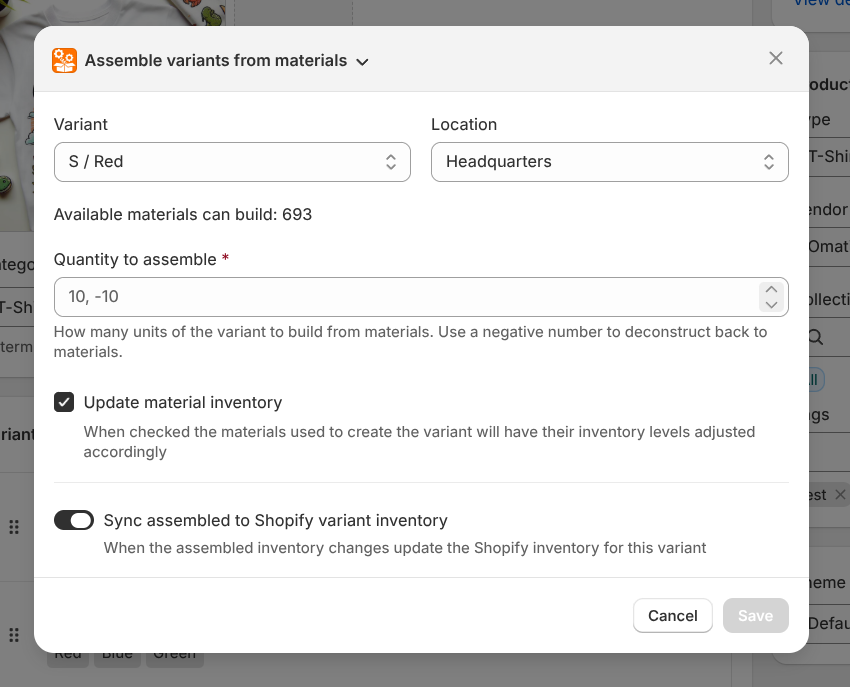
Enter the number of variants to be assembled. This can be a positive or negative number to either increase or decrease the assembled inventory level.
Check the “Update material inventory” option to automatically adjust the raw material inventory levels based on how much is required by the assembled variants.
The “Sync assembled to Shopify variant inventory” toggle can be used to enable/disable the automatic updating of the Shopify variant inventory level when the assembled inventory level changes. This option is enabled by default.
Click save to complete the assembly process. At this point, the assembled inventory level for the variant will be updated, and if selected, the raw material inventory levels will also be adjusted.
Viewing assembled inventory levels
In the Shopify admin, on both the product and variant page, a block can be added to display the assembled inventory levels. To add the block, scroll to the bottom of the page and click on the “+ Block” button. Select “Assembled variants” or “Assembled products” depending on the page you are on.
Note: assembled inventory levels will only show on the product page if the product does not have multiple variants. For products with multiple variants, the assembled inventory block can be viewed on the individual variant pages.
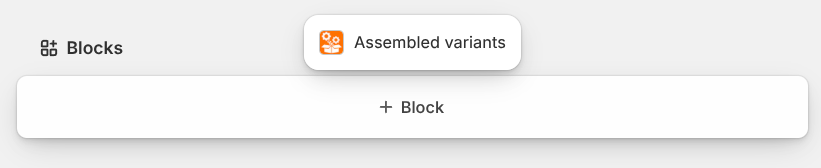
This will temporarily add the block. Click on the pin icon in the top right of the block to make it permanent.
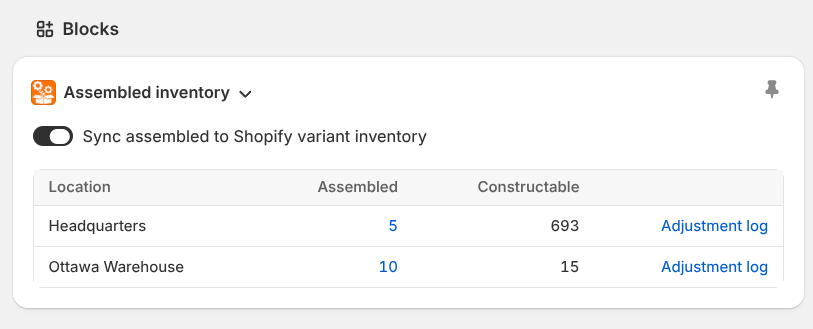
Assembled inventory block features
-
Sync assembled to Shopify variant inventory option: This is enabled by default. When enabled, the assembled inventory level will be added to the quantity of the variant that can be assembled from materials that have the “Update Shopify inventory” option enabled. The app will then set the Shopify variant inventory level to this total.
If all materials assigned to the variant have the “Update Shopify inventory” option disabled, then the Shopify inventory level will be set to the assembled inventory level.
If you do not want the app to ever adjust the Shopify inventory level for this variant and disable the update Shopify option for both the assembled inventory and the raw materials.
-
Location column: Shows the location for the assembled inventory level.
-
Assembled column: Shows the current assembled inventory level for the variant at that location. Clicking on this number will open the assemble variants dialog with the appropriate variant and location preselected.
-
Constructable column: Shows how many more variants can be assembled based on the current raw material inventory levels.
-
Adjustment log link: Click this to view the history of adjustments made to the assembled inventory level for that variant at that location. This will include all assemblies/disassemblies as well as adjustments made by orders.
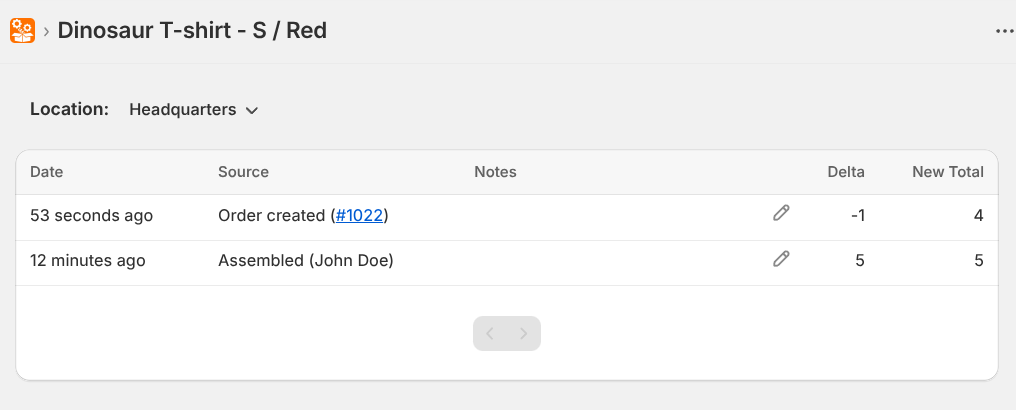
How orders use assembled inventory
When an order is placed, the app will first check if there is any assembled inventory available for the ordered variants. If there is assembled inventory available, it will be used to fulfill the order first. If there is not enough assembled inventory to fulfill the order, then the app will use raw materials to fulfill the remaining quantity.
When viewing an order, you can see how many preassembled variants were used to fulfill it in two ways:
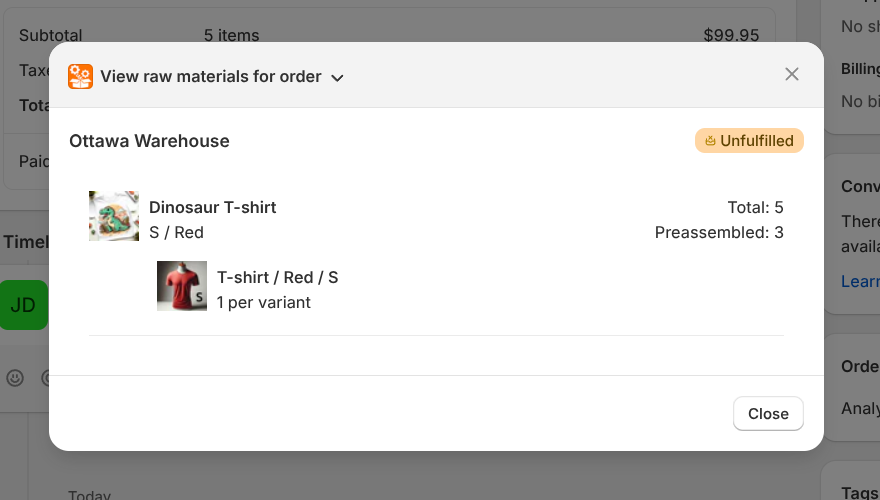
- Click on the “More actions” in the top right, then select “View raw materials for order”. In the following screenshot, 5 shirts were ordered and the 3 available preassembled variants were used in the order:
- At the top, click on “Print”, then select “Material Manager”. This will open a printable view of the order that includes the raw materials used, as well as how many preassembled variants were used: