Cart checkout validation
Prevent overselling shared raw materials at checkout with Material Manager's cart validation feature
Material Manager helps prevent overselling in real time when multiple cart items depend on the same raw materials.
How it works
Material Manager validates stock during add-to-cart and checkout. If multiple items share the same raw materials, the app calculates total demand and alerts customers if there isn’t enough material inventory to fulfill the entire order.
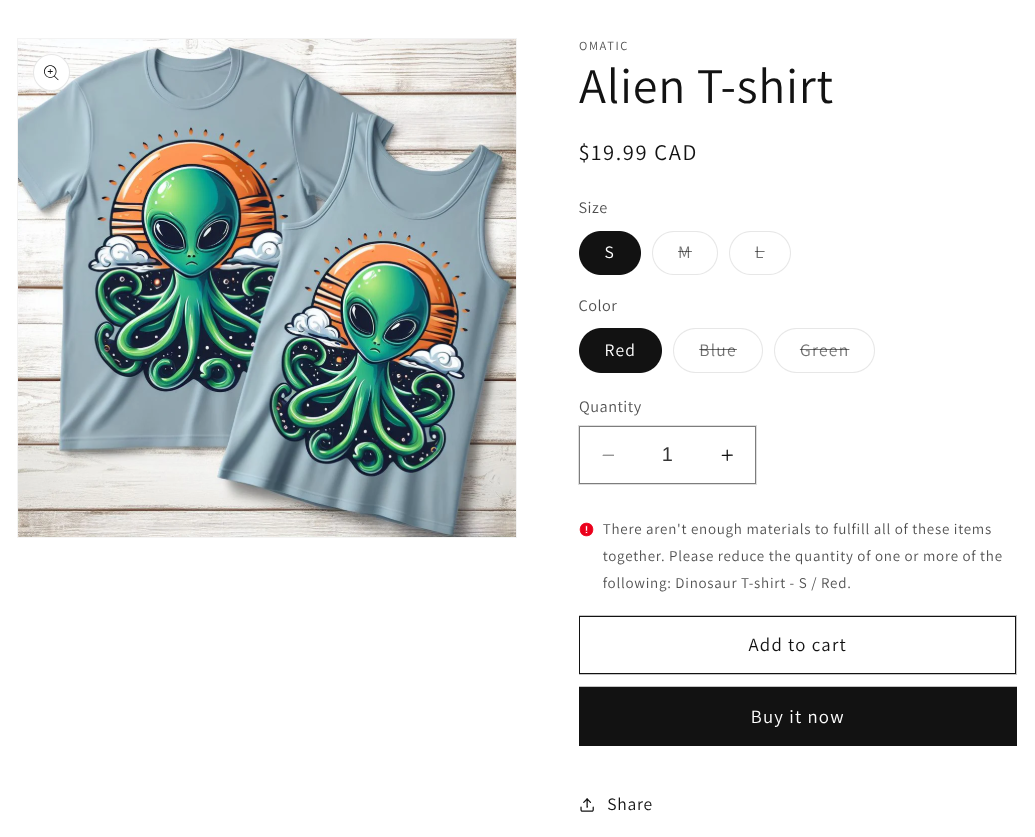
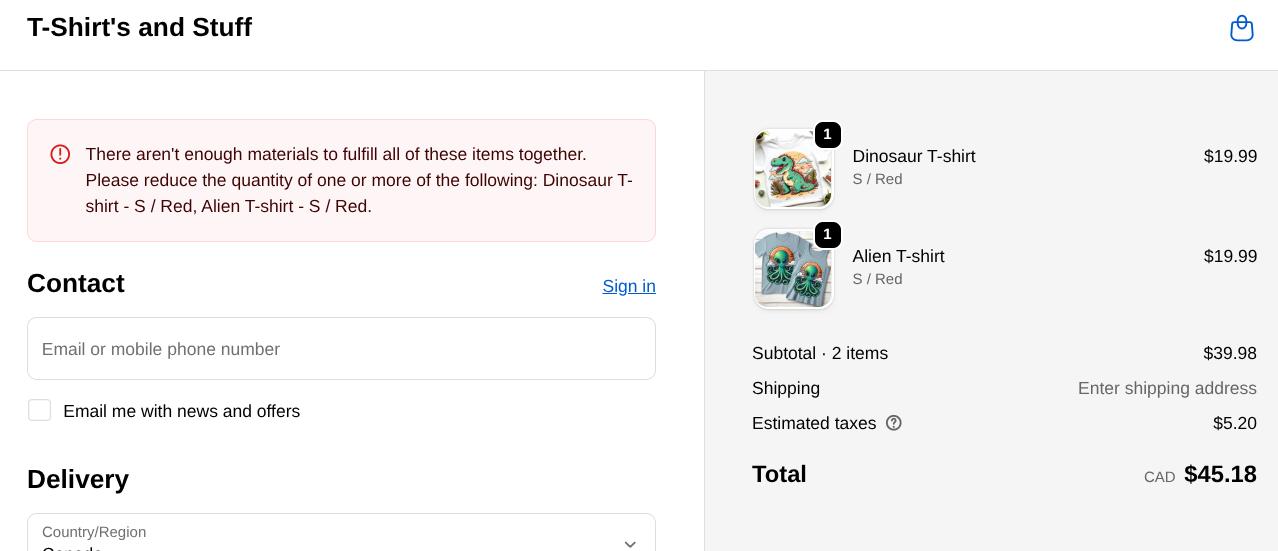
Example: A customer adds a “Dinosaur T-shirt - S / Red” and an “Alien T-shirt - S / Red” to their cart. Both variants require the same small red t-shirt, but there is only 1 in stock. The customer sees:
There aren’t enough materials to fulfill all of these items together. Please reduce the quantity of one or more of the following: Dinosaur T-shirt - S / Red, Alien T-shirt - S / Red.
Example when adding to cart
When a customer adds a product that would exceed shared material inventory, they see an error like this:
Example when checking out
If material levels decrease in between adding items to the cart and checking out, and there are no longer enough materials to fulfill the cart, the customer sees a similar error message at checkout:
Requirements
Before enabling cart checkout validation:
- The Sync material inventory setting must be turned on. Validation relies on inventory being kept in sync to make accurate decisions. If you turn off material sync, validation is automatically disabled as well.
Enabling cart checkout validation
- Open Material Manager and go to Settings.
- Scroll to the Checkout validation section.
- Check the Block checkout when shared materials are insufficient checkbox.
- Click Save.
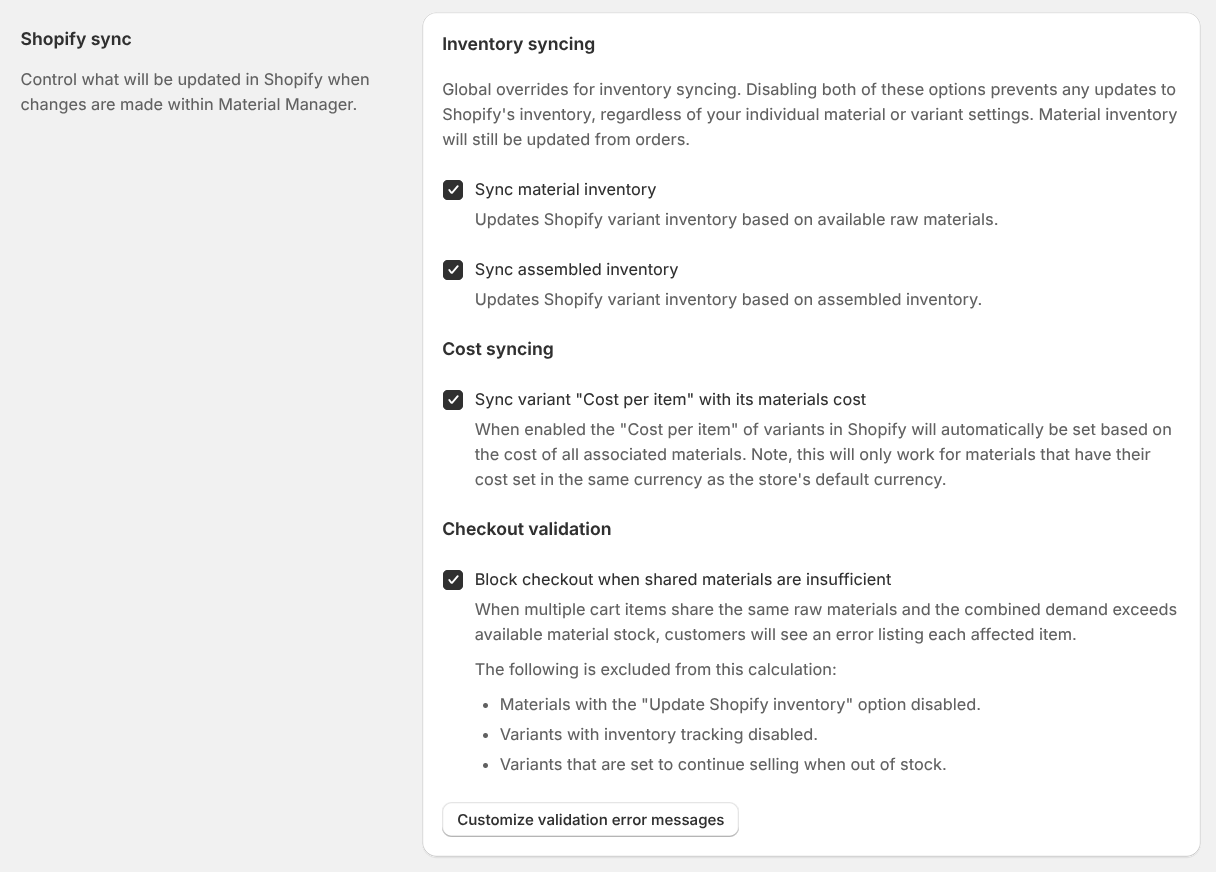
Once saved, Material Manager registers a validation rule with Shopify that runs automatically during checkout.
What is excluded from the check
Not every cart item is included in the demand calculation. The following are intentionally excluded:
- Materials with “Update Shopify inventory” disabled. If a material is not being synced to Shopify inventory, its quantities are not reliable enough to block a sale.
- Variants with inventory tracking disabled. Shopify variants that do not track quantity are treated as always available.
- Variants set to continue selling when out of stock. If a variant’s inventory policy is set to “Continue”, demand from that variant is not counted.
Customizing error messages
You can customize the error message shown to customers for each language enabled in your store. After enabling checkout validation, click the Customize validation error messages button that appears below the checkbox. This opens a dialog where you can set the error message for each language:
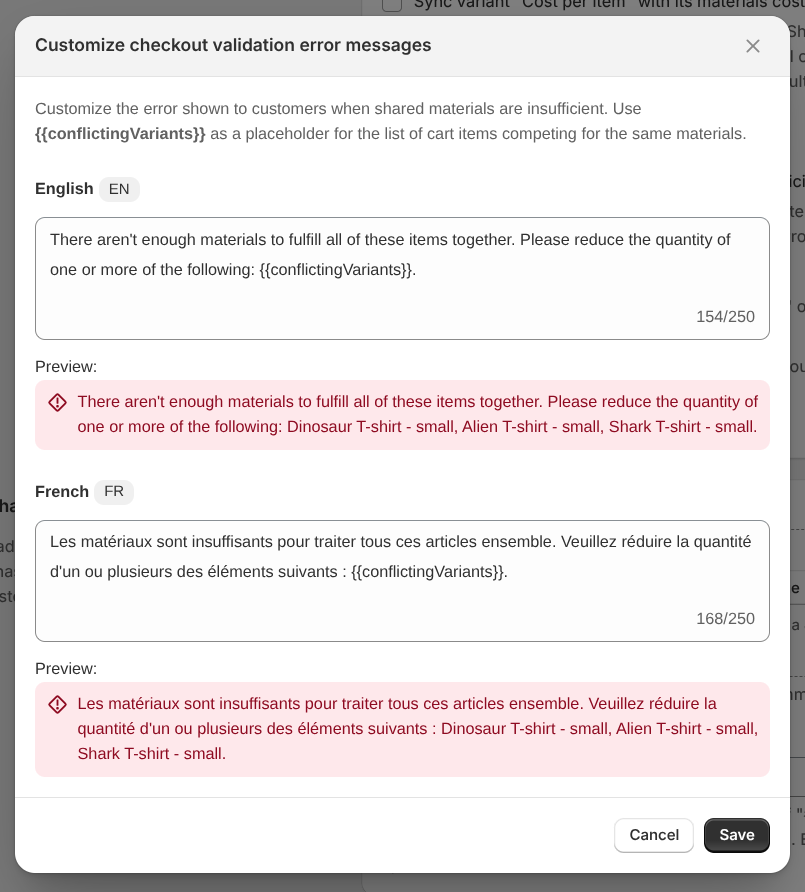
Edit each message as needed. Use the placeholder {{conflictingVariants}} where you want the list of competing product names to appear. A live preview appears beneath each field so you can see an example of what customers will see.