Create materials from Shopify products
Automatically convert existing Shopify products into tracked raw materials with Material Manager
Overview
Use this tool if you sell products that also serve as materials for other items (for example, a plain t-shirt sold individually that also serves as the “base” for various printed designs).
Selecting a product will automatically create a new material and link it to the original Shopify variant. Once linked, you can manage your inventory within Material Manager to keep both in sync. The new material is then ready to be used as a component in other products.
To access the tool, click on the “More actions -> Create materials from products” button in the top right of the raw materials list page.
How to convert products to materials
1. Select your variants
Click on the Select variants button to open the Shopify resource picker. You can select up to 50 variants that you wish to convert into raw materials at a time.
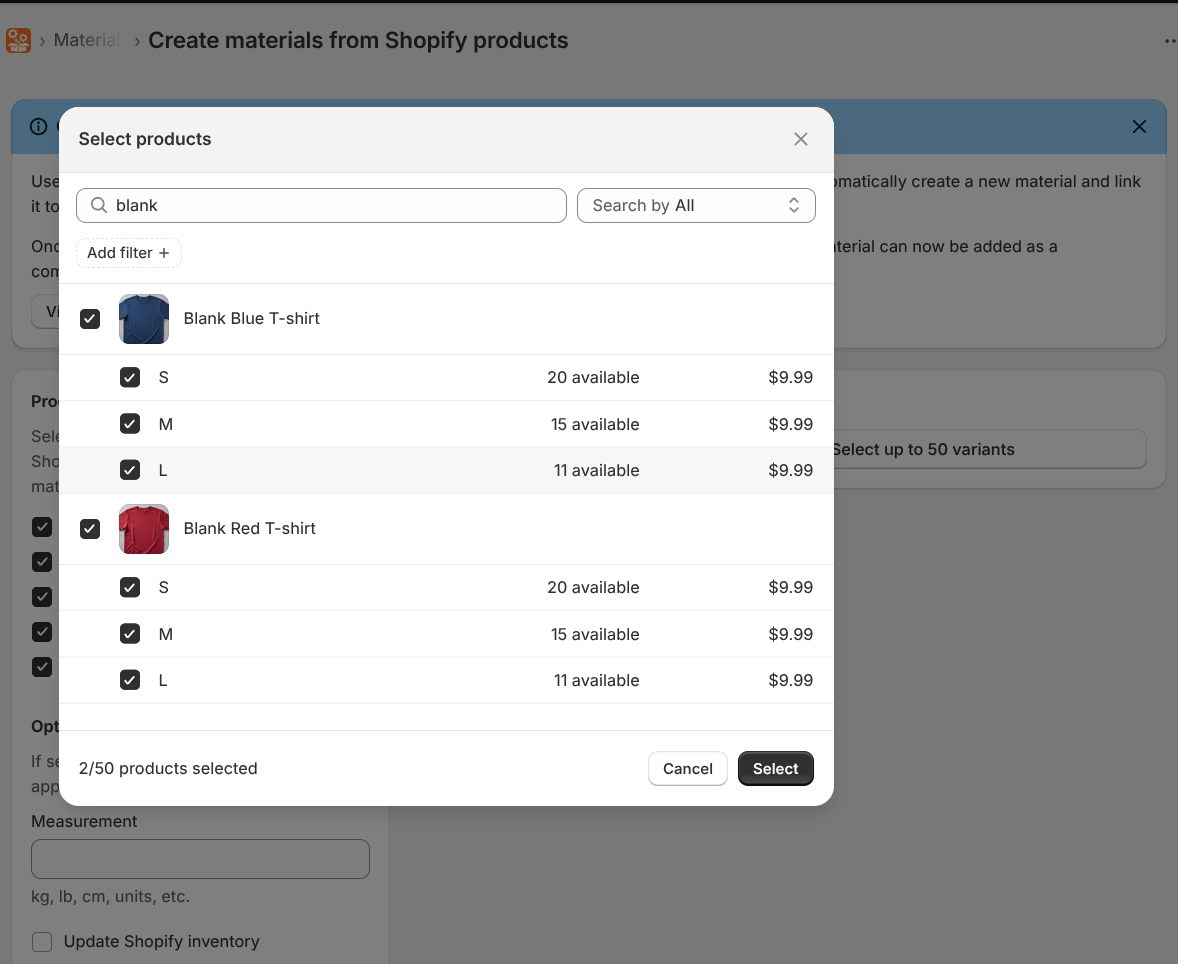
2. (Optional) Edit the material names
By default the materials names will be derived from a combination of the product and variant names. You can edit the material names in the list before creating them. The material name will not affect the Shopify product name.
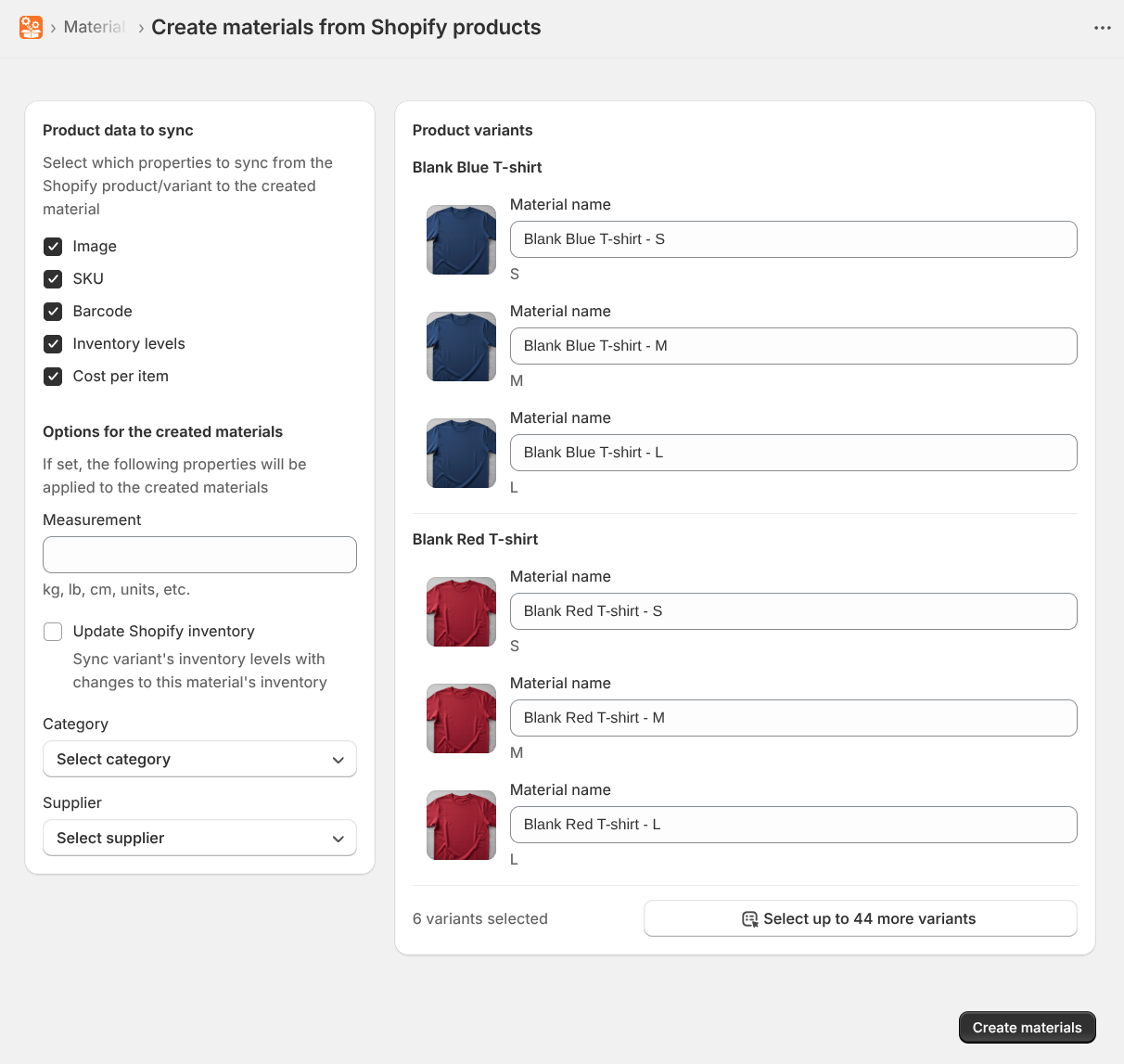
3. (Optional) Choose data to sync
In the Product data to sync section, toggle the attributes you want to copy from the Shopify product to the new material:
- SKU & Barcode: Syncs identifying codes for consistent tracking.
- Images: Automatically attaches the variant image to the material.
- Inventory levels: Sets the starting material inventory based on current Shopify inventory for each location.
- Cost per item: Copies the recorded cost from Shopify to help with value tracking.
4. (Optional) Set common properties for all materials
In the Options for the created materials section you can set properties that will apply to all the materials created in this batch. The following properties can be set:
- Measurement: The unit of measurement for the materials (e.g. kg, lb, cm, units, etc.).
- Update Shopify inventory: If toggled on, the app will continually update the inventory levels of all variants associated to the materials.
- Category: The category that the materials will be organized under in the app.
- Supplier: The supplier associated with the materials.
5. Create and Link
Review your selections, when you are ready, click Create materials.
The app will:
- Create a unique raw material for every selected variant.
- Link the material to the Shopify variant.
- Sync the selected data automatically.
Important: Inventory Management
If you enabled the Update Shopify inventory option, the Material Manager app becomes the source of truth for inventory. To ensure your store levels stay accurate, you should now manage the inventory levels within this app. Any updates made here will automatically reflect on your Shopify store.
Next steps
Now that your materials are created, you can add them as components to other products.